If your computer will not start, you might be able to start it in safe mode. In safe mode, Windows uses default settings (VGA monitor, Microsoft mouse driver, no network connections, and the minimum device drivers required to start Windows).
If your computer will not start after you install new software, you might be able to start it with minimal services in safe mode and then change your computer settings or remove the newly installed software that is causing the problem. You can reinstall the service pack or the entire operating system, if necessary.
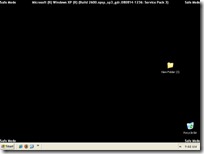
If a symptom does not reappear when you start in safe mode, you can eliminate the default settings and minimum device drivers as possible causes of the computer's inability to start.
- In safe mode, you have access to only basic files and drivers (mouse, monitor, keyboard, mass storage, base video, default system services, and no network connections). You can choose the Safe Mode with Networking option, which loads all of the above files and drivers and the essential services and drivers to start networking, or you can choose the Safe Mode with Command Prompt option, which is exactly the same as safe mode except that a command prompt is started instead of the graphical user interface. You can also choose Last Known Good Configuration, which starts your computer using the registry information that was saved at the last shutdown.
- Safe mode helps you diagnose problems. If a symptom does not reappear when you start in safe mode, you can eliminate the default settings and minimum device drivers as possible causes. If a newly added device or a changed driver is causing problems, you can use safe mode to remove the device or reverse the change.
- There are circumstances where safe mode will not be able to help you, such as when Windows system files that are required to start the system are corrupted or damaged. In this case, the Recovery Console may help you.
- NUM LOCK must be off before the arrow keys on the numeric keypad will function.
To start the computer in safe mode
- You should print these instructions before continuing. They will not be available after you shut your computer down in step 2.
- Click Start, click Shut Down, and then, in the drop-down list, click Shut down.
- In the Shut Down Windows dialog box, click Restart, and then click OK.
- If you have only installed one operating System then just after boot screen disappear (the logos that you see when you start computer eg Dell,HP, Intel or other) OR after boot process information (When the message “Press F2/Del key to enter setup” or any other similar message gone) Press F8 and proceed to step 7.
- OR When you see the message Please select the operating system to start, press F8.
- If you have a dual-boot or multiple-boot system, choose the installation that you need to access using the arrow keys, and then press ENTER.
- Use the arrow keys to highlight the appropriate safe mode option, and then press ENTER.
The Safe Mode Options are:
Starts using only basic files and drivers (mouse, except serial mice; monitor; keyboard; mass storage; base video; default system services; and no network connections). If your computer does not start successfully using safe mode, you might need to use the Recovery Console feature to repair your system.
- Safe Mode with Networking
Starts using only basic files and drivers, and network connections.
- Safe Mode with Command Prompt
Starts using only basic files and drivers. After logging on, the command prompt is displayed instead of the Windows graphical interface.
Starts while logging all the drivers and services that were loaded (or not loaded) by the system to a file. This file is called ntbtlog.txt and it is located in the %windir% directory. Safe Mode, Safe Mode with Networking, and Safe Mode with Command Prompt add to the boot log a list of all the drivers and services that are loaded. The boot log is useful in determining the exact cause of system startup problems.
Starts using the basic VGA driver. This mode is useful when you have installed a new driver for your video card that is causing Windows not to start properly. The basic video driver is always used when you start in Safe Mode (either Safe Mode, Safe Mode with Networking, or Safe Mode with Command Prompt).
- Last Known Good Configuration
Starts using the registry information and drivers that Windows saved at the last shutdown. Any changes made since the last successful startup will be lost. Use Last Known Good Configuration only in cases of incorrect configuration. It does not solve problems caused by corrupted or missing drivers or files.
According to your selection windows will be loaded in safe mode.
After windows Start in safe mode you will receive a message. If you want to use System Restore to restore your computer at an earlier stage click NO otherwise click YES button.


